
'Audio to SRT: How to Create Subtitles From an Audio File'
'Convert MP3, WAV, M4A or other audio into an editable SRT subtitle file, then fix names, timing and formatting before export.'
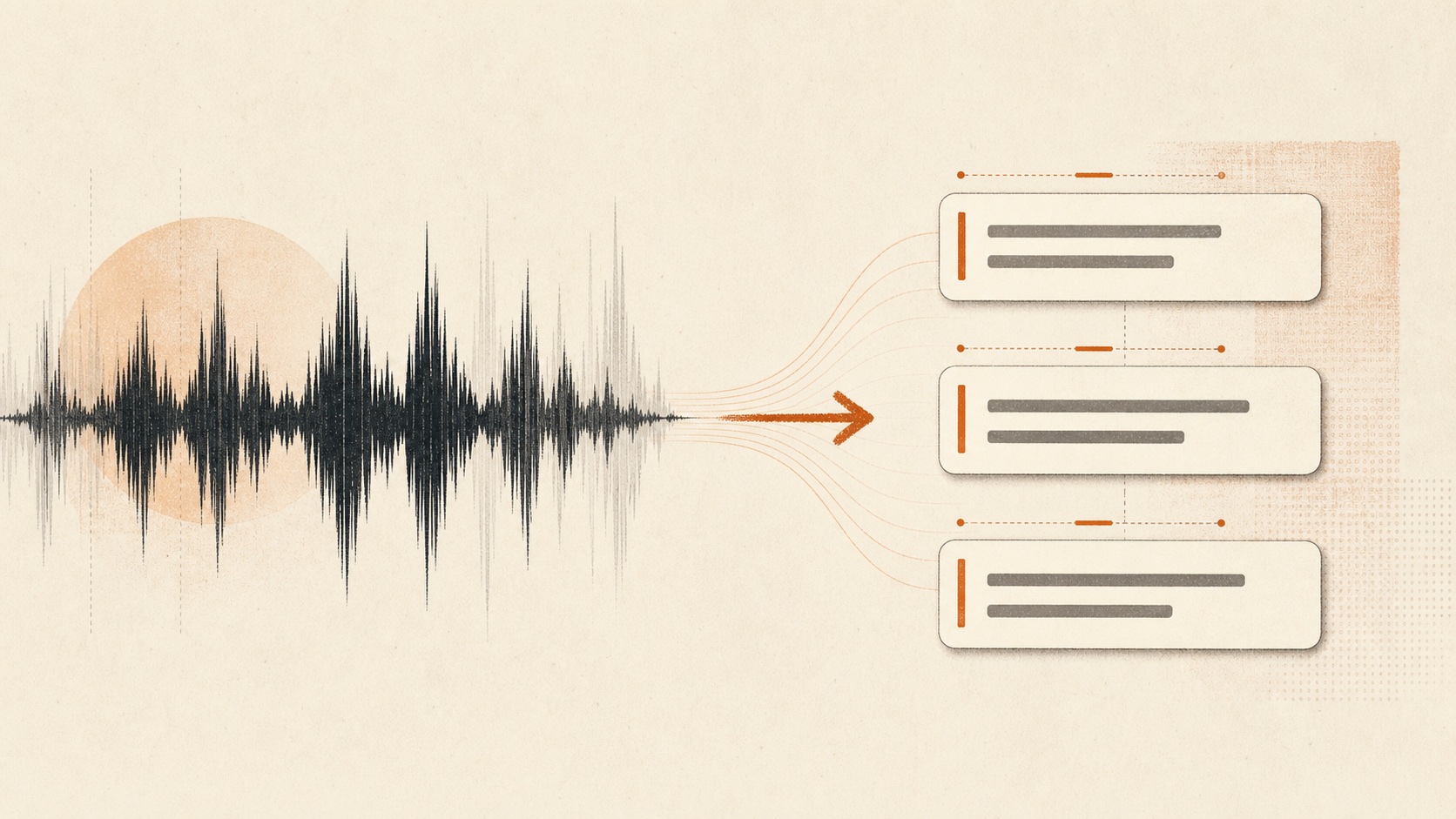
An audio file has words but no subtitle cues. An SRT file needs both: the transcript and the exact time each line should appear.
That is why changing the filename from .mp3 to .srt does nothing useful. The audio must be transcribed, split into readable segments, timed, checked and then exported as plain text.
Here is a practical way to do it without spending an afternoon typing timestamps.
The short version
To convert audio to SRT:
- Use the cleanest copy of the recording you have.
- Upload it to an audio-to-SRT converter.
- Generate a timestamped transcript.
- Correct names and obvious recognition errors.
- Check where subtitle cues begin and end.
- Download the result as
.srtand test it with the final video.
The conversion itself is quick. Review is where the quality comes from.
Start with the right audio file
CastToAny accepts common audio formats including MP3, M4A and WAV. If you also have the original video, use that instead of an audio export when possible. It gives you one less chance to introduce a duration mismatch.
A large WAV file is not automatically better than a clean MP3. Speech recognition benefits from clear voices, low background noise and consistent volume. A heavily compressed but understandable interview may transcribe better than a lossless recording with loud music over the dialogue.
Before uploading, listen to three places:
- The opening, where music often overlaps the introduction
- A conversation in the middle, especially if people interrupt each other
- The ending, where volume may fade
This takes less than a minute and tells you where the transcript will need attention.
Generate the timed transcript
Open the CastToAny SRT generator, choose the upload option, and select the recording. The transcription produces editable segments with timestamps rather than one long wall of text.
Those timestamps become the start and end times in the exported SRT file. A cue will look like this:
17
00:01:12,480 --> 00:01:16,020
The first draft is useful, but I still check every name.
If you want to understand each part of the format or build a short file manually, read How to make an SRT file.
Review the words before the timing
Fix the transcript while the recording is still fresh. Start with errors that change meaning:
- People's names
- Company and product names
- Numbers, prices and dates
- Negatives such as "can" versus "can't"
- Technical terms and abbreviations
Punctuation matters, but a misspelled guest name is more damaging than a missing comma. Work in that order.
Recordings with several speakers need extra care. Speaker labels may help you navigate a long interview, but they should not be treated as infallible when voices are similar or people talk over one another.
Check subtitle timing in context
A transcript can be accurate and still make poor subtitles. Read the cues while listening at normal speed.
Look for three problems:
A cue appears too early
The viewer reads the line before the speaker says it. Move the start time closer to the speech, but avoid cutting off the first word.
A cue disappears too quickly
Split a dense cue into two shorter ones or give it more screen time. Do not leave a long paragraph on screen for a fraction of a second.
A sentence is split in an awkward place
Keep names, short phrases and closely related words together. A line break after "not" or between a first and last name is distracting even when the timestamps are technically correct.
There is no substitute for playing the file. Timing that looks neat in a table can feel wrong beside the actual voice.
Export and inspect the SRT
Download the corrected transcript as SRT. The file should be plain UTF-8 text containing numbered cues, timestamps and subtitle text.
Open it once in a text editor. You are not proofreading the whole transcript again. Check that:
- The file begins with cue 1
- Timestamps use the
00:00:00,000 --> 00:00:00,000pattern - Cues are separated by blank lines
- The final cue is present
- Non-English characters display correctly
YouTube recommends UTF-8 plain text for basic SRT uploads. Its subtitle format reference also provides a working SubRip example.
Test against the final video, not a draft edit
An SRT file is tied to duration. If someone adds a five-second logo animation to the start of the video after you create the subtitles, every cue may be five seconds early.
Do the final timing check after the picture edit is locked. If the video changes later, note the exact edit point. You may only need to shift the cues after that point rather than regenerate the entire file.
Adobe Premiere can import an SRT into the project panel and place it on a caption track. Other editors use a similar import workflow. Always check the exported video too; an editor preview is not the same as the file your audience will watch.
What an audio-to-SRT converter cannot fix by itself
Transcription software cannot recover words that are not intelligible in the recording. It may make a plausible guess, which can be worse than leaving the passage for review.
Expect to intervene when the audio contains:
- Loud music over speech
- Several people speaking at once
- A distant microphone or strong echo
- Specialist vocabulary without context
- Abrupt cuts in the recording
For an important quote, listen to it. For legal, medical or safety-critical material, use a qualified human reviewer rather than publishing an unchecked automated transcript.
Keep the transcript after exporting
The SRT is useful for captions, but the edited transcript has a longer life. It can become show notes, a searchable archive or the source for a summary.
Save both files. If the video is re-edited, the clean transcript is easier to reuse than text trapped inside old subtitle timing.
When the recording is ready, convert the audio into an editable SRT file, review the cues, and export only after the words and timing make sense together.